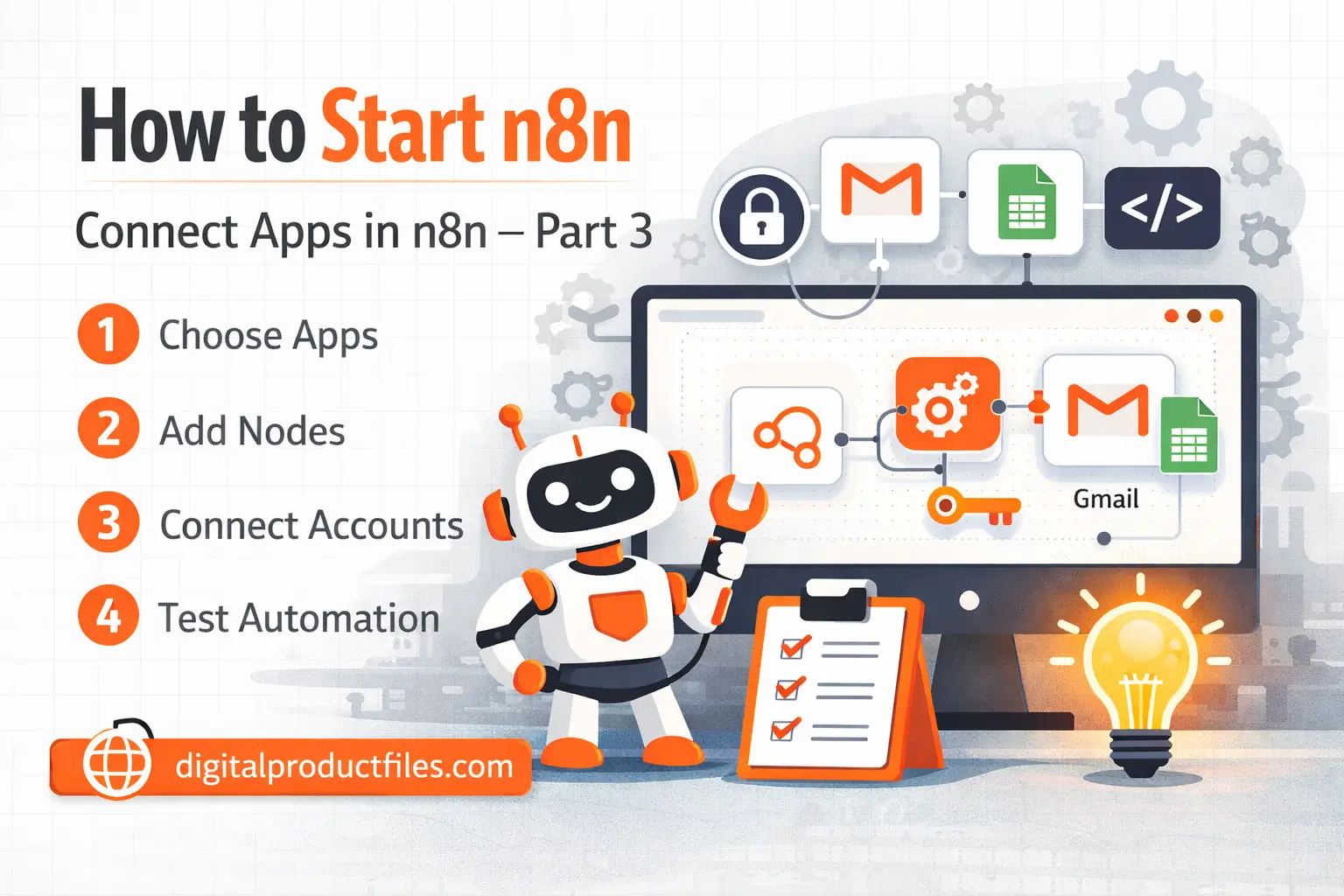
In this n8n tutorial, we will learn one of the most important steps for beginners: how to connect apps in n8n. After creating your first simple workflow, the next step in your n8n start journey is linking the tools you use every day, such as Gmail, Google Sheets, Slack, or other business apps. For your remember
How to Start n8n: Easy Beginner Guide part- 1
How to Start n8n: Build Your First Simple Workflow – Part 2
by the way,
The good news is that n8n makes this process much easier than many beginners think. You do not need to be an advanced developer. You only need to understand how a connection works and how data moves from one app to another.
Why app connection matters in n8n
The real power of n8n comes from connecting apps. This is how you automate work, save time, reduce manual tasks, and build smart workflows for business or personal use. For example, you can make n8n send form data to Google Sheets, send email alerts, or pass information between multiple tools automatically.
Step 1: Choose the apps you want to connect
First, open your workflow and think about what you want to automate. A beginner-friendly example is:
- Trigger: Schedule Trigger
- Action: Gmail
- Next Action: Google Sheets
This type of setup is a very practical n8n tutorial example because it helps you understand both triggers and app actions.
Step 2: Add your app node
Now click the plus icon and add the app you want, such as Gmail or Google Sheets. In n8n, each app usually has its own node. This node is where you set up the task, such as sending an email, creating a row, or updating data.
Step 3: Connect your account
When you open the node, n8n will ask you to connect your account or credentials. This step allows n8n to work with that app securely. Once the account is connected, you can choose what action you want the node to perform.
Step 4: Test the connection
This is a very important part of your n8n start process. Always test the node before activating the full workflow. A quick test helps you see whether the connection works, whether the data is correct, and whether the workflow is doing what you expect.
Step 5: Build step by step
One common beginner mistake is trying to build a large workflow too early. A better n8n tutorial approach is to start with two connected apps, test them, and then slowly add more steps when you feel comfortable.